In the record
Seen in action.
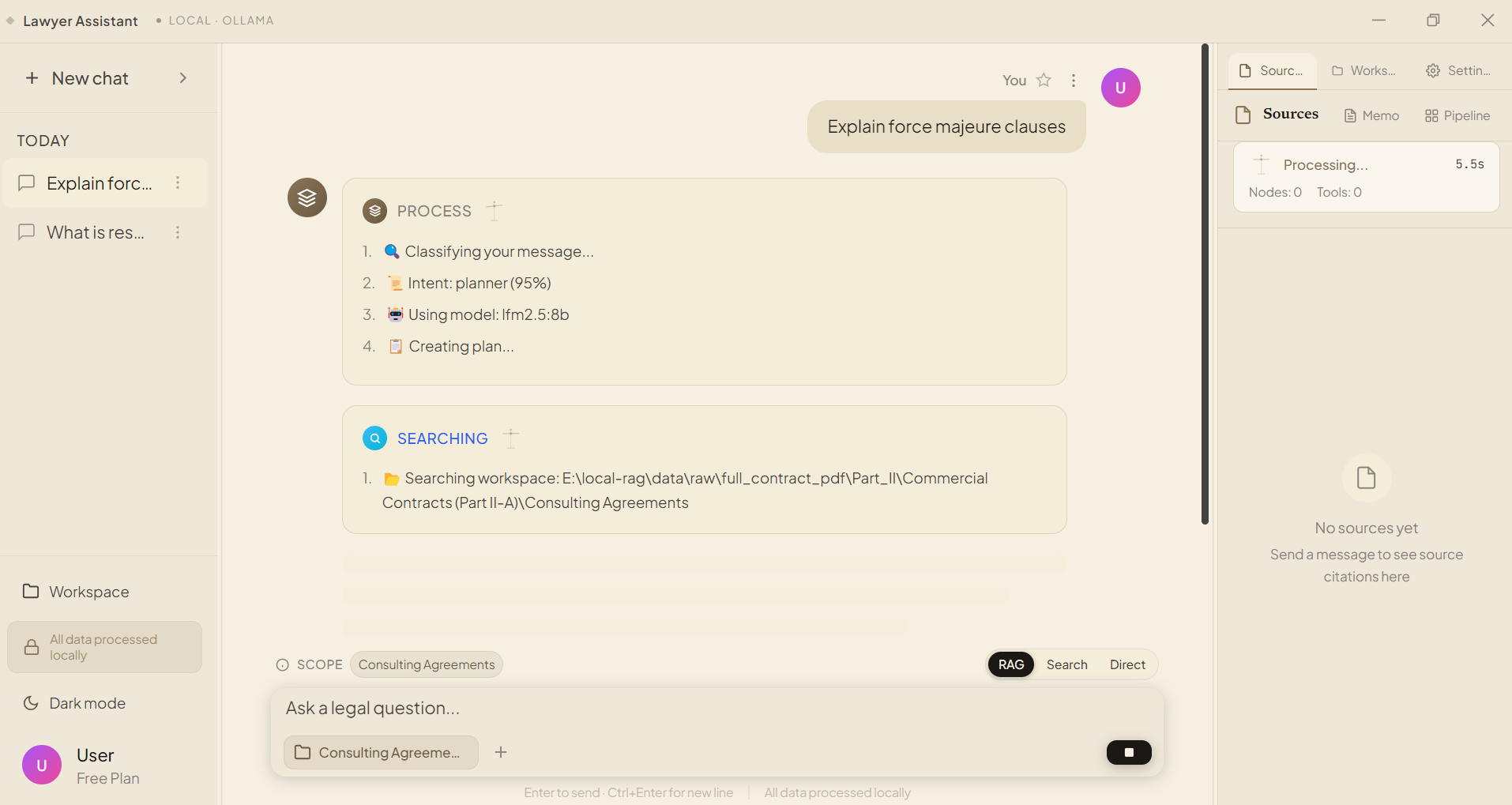 01 · Search & retrieval
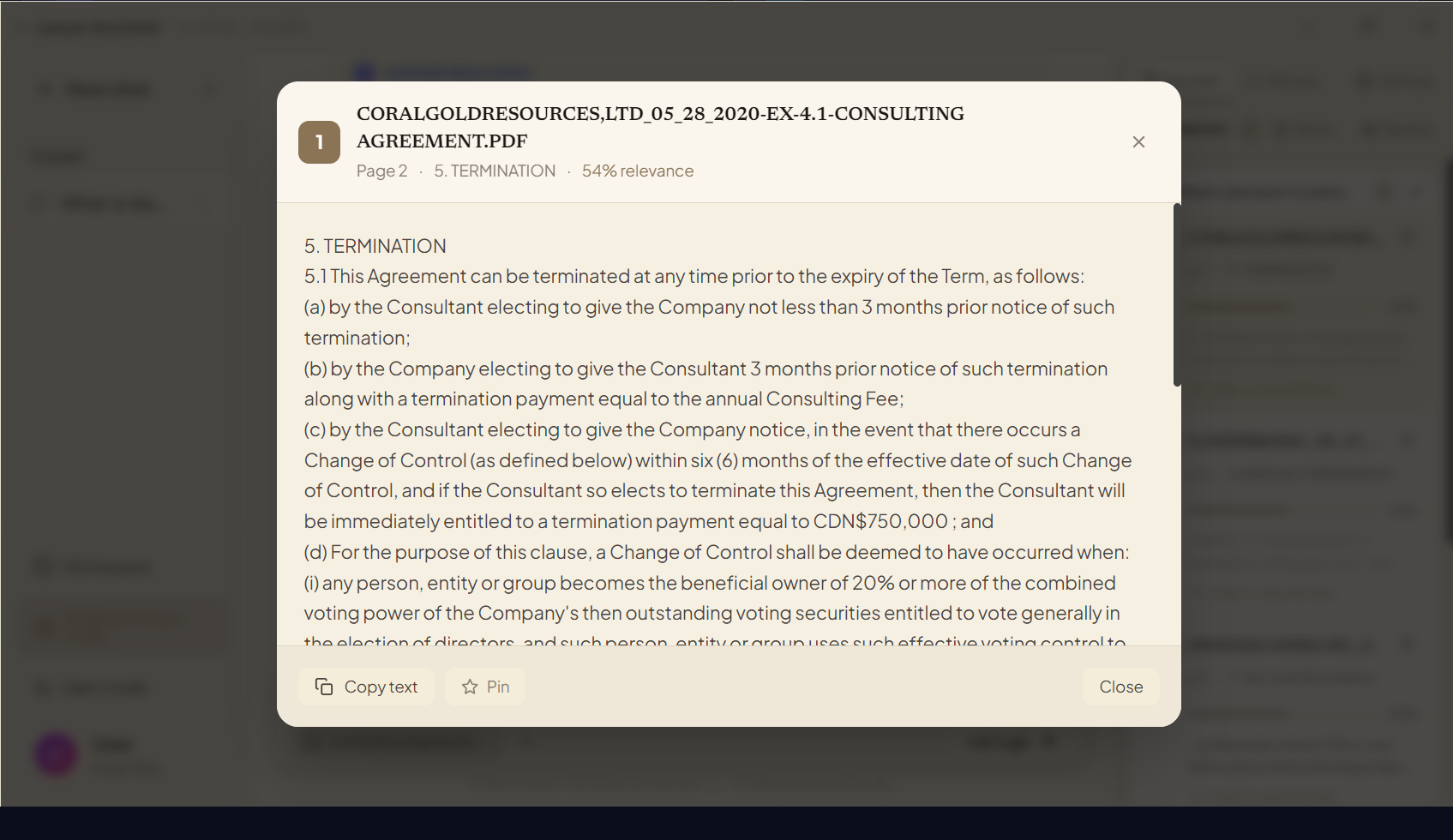 02 · Sources & citations
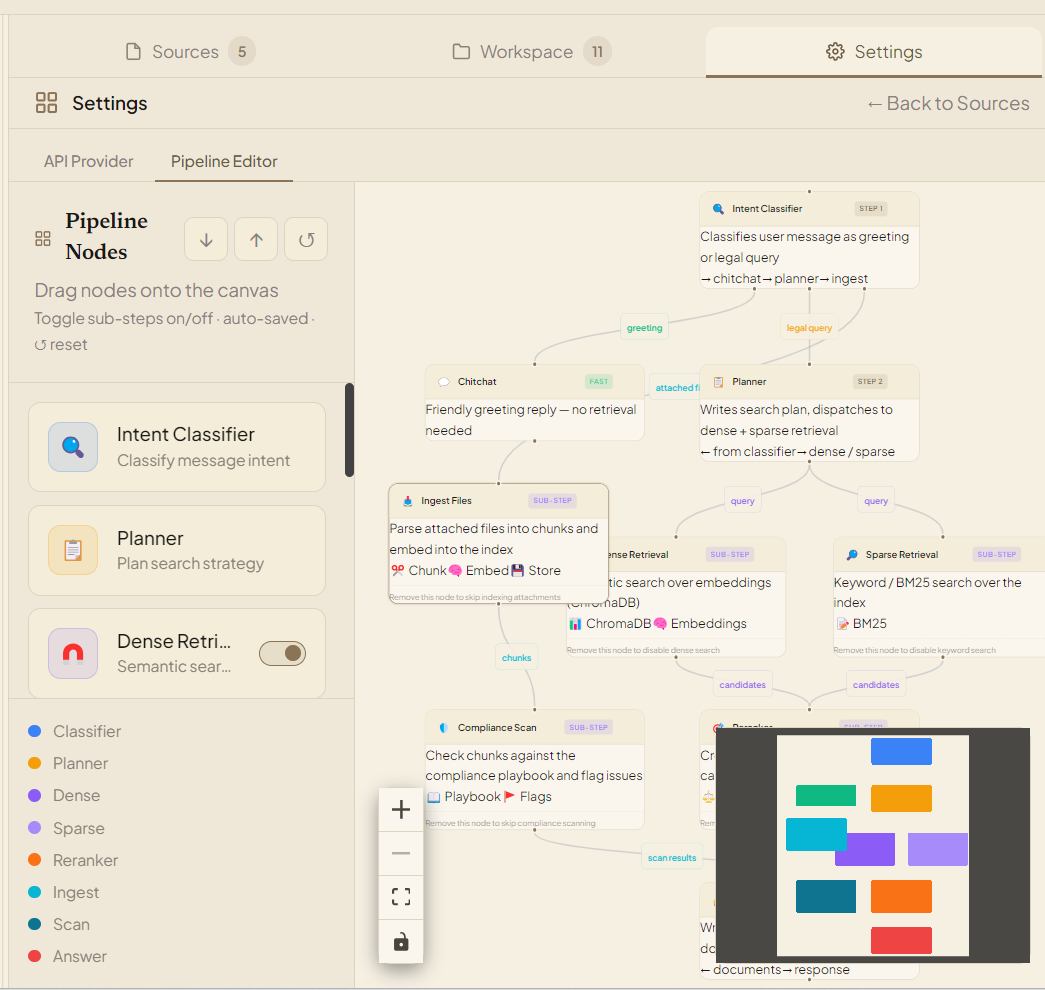 03 · Pipeline editor
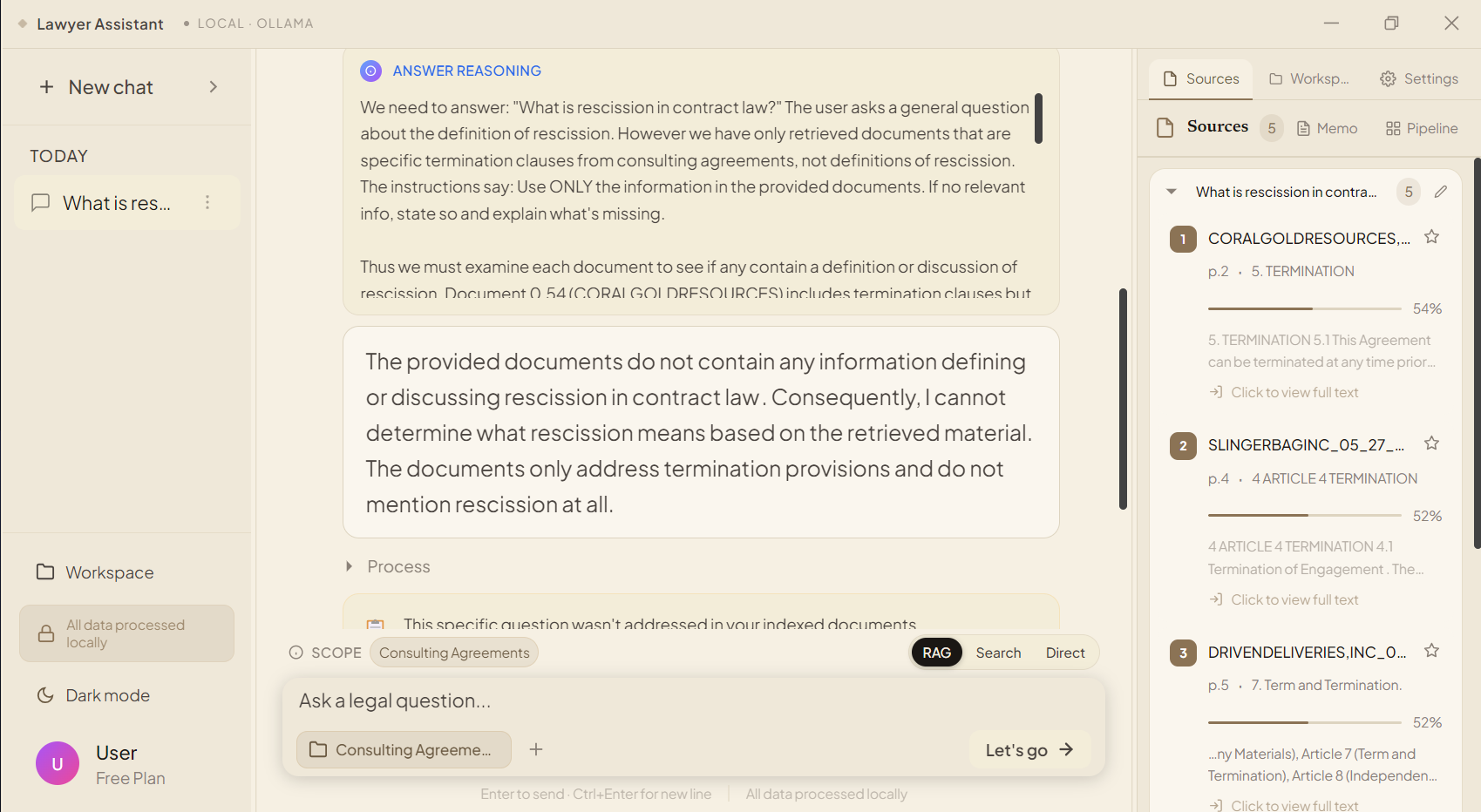 04 · Grounded answers
No terminal commands. No manual installs. The launcher handles everything — Python, dependencies, AI models, and Ollama — so you can focus on your documents.
Pick your platform above — Windows .exe, macOS archive, or Linux AppImage — and download the file for your system (or use the buttons at the bottom of this page).
Windows: right-click the file → Extract All…. macOS: double-click it. Move the extracted folder somewhere permanent, like Documents.
Windows: double-click launch.bat. macOS / Linux: run launch.sh. A setup page opens in your browser — that's your control center.
Click Install. The launcher sets up the Python environment, installs dependencies, downloads the AI models, and installs Ollama — automatically, with progress shown for every step.
Once installation finishes, click Launch. The desktop app opens — usually in under a minute. From then on you can close the launcher anytime.
Pick a folder of documents, click Ingest all files, then type a question in plain English. You'll get an answer with inline citations pointing to the exact passages.
Three downloads, one app — grab the installer for your system, or the universal archive and run the launcher script.
Setup installer for Windows 10 & 11. If SmartScreen warns, click More info → Run anyway.
Download .exe ↓Universal archive (no native build yet) — extract it and double-click launch.sh. If Gatekeeper warns, right-click → Open.
AppImage — make it executable and run, or install from the tar.gz and use launch.sh.
Generic chatbots guess. Cloud legal tools hold your documents hostage. Lawyer Assistant sits between them: real retrieval over your files, with citations you can check.
01 · Search & retrieval02 · Sources & citations03 · Pipeline editor04 · Grounded answersPick a fully-local model for total privacy, or connect your own API key from any major provider — switch any time, in one dropdown.
| Capability | Generic chatbot | Lawyer Assistant | Legal SaaS cloud |
|---|---|---|---|
| Runs 100% on your machine | ✕ | ✓ | ✕ |
| Works fully offline | ✕ | ✓ | ✕ |
| Answers cite exact source passages | ✕ | ✓ | Partial |
| Your documents stay private | ✕ | ✓ | ✕ |
| Compliance playbook scan | ✕ | ✓ | ✕ |
| Custom retrieval pipeline | ✕ | ✓ | ✕ |
| No per-document subscription fees | — | ✓ | ✕ |
Ingestion, search, and answering all happen on your hardware. In local mode, no question, document, or answer ever touches a third-party server — a deliberate choice for attorney–client privilege.
Choose an API provider and only your question plus retrieved passages are sent to that provider — clearly shown in the app, never silently.
No. The launcher does everything for you: it sets up the Python environment, installs all dependencies, downloads the AI models, and installs Ollama automatically. You only need to download the app and run the launcher.
Yes for local mode. The app runs its AI models on your own hardware, so you need a machine built for AI inference: a dedicated GPU with at least 8 GB VRAM, an NPU, or a new AI-ready PC (Copilot+ PC or recent Apple Silicon), plus at least 32 GB of RAM. If your computer doesn't qualify, use cloud mode with your own API key — only your question and the retrieved passages go to the provider you choose.
AI-ready PCs are purpose-built for running models locally: Microsoft Copilot+ PCs with a built-in NPU, Apple Silicon Macs (M-series), and NVIDIA RTX-powered Windows PCs. For local AI usage, pick one with a dedicated GPU with at least 8 GB VRAM or an NPU, plus at least 32 GB of RAM — it runs search, embeddings, and answers entirely on your machine, private and offline.
You need internet for the first install to download the models. After that, the app works fully offline with a local model.
No. Lawyer Assistant is free and open source under the MIT license. There are no subscriptions and no hidden fees.
Each setup step can be retried on its own. Just click Retry on the failed step — you never need to restart the whole installation.
The archive includes everything — models and launcher included. Install in minutes, free.
FREE & open source · Windows · macOS · Linux · all releases